Tăng cường cộng tác và chuyển đổi nội dung cuộc họp với Zoom Canvas ưu tiên sử dụng AI
Công bố Zoom Canvas: giải pháp tài liệu cộng tác, ưu tiên sử dụng AI, cho phép bạn chuyển đổi nội dung cuộc họp thành các tài liệu, wiki và dự án hữu ích.
Get to know Zoom Canvas with AI Companion — follow our tips for creating collaborative docs using meeting summaries and transcripts, templates, and more.
Đăng vào 5 tháng 8, 2025
Robin Bunevich là Trưởng phòng Tiếp thị Sản phẩm tại Zoom. Cô giám sát hoạt động tiếp thị sản phẩm và chiến lược cho Zoom AI. Sau ba năm lãnh đạo bộ phận tiếp thị cho các sản phẩm Giải pháp sự kiện của Zoom và ra mắt một trong những sản phẩm phát triển nhanh nhất tại Zoom là Zoom Events, hiện cô tập trung vào việc giúp các tổ chức áp dụng AI một cách mượt mà vào quy trình làm việc của họ. Trước khi đến với Zoom, cô phụ trách tiếp thị cho các sự kiện trực tiếp tại The New York Times và đóng vai trò quan trọng trong việc giúp tổ chức này chuyển sang chương trình sự kiện hoàn toàn trực tuyến vào tháng 3 năm 2020. Tại Zoom, Robin tận dụng hơn 15 năm kinh nghiệm trong lĩnh vực tiếp thị và quảng cáo để nâng cao nhận thức và thúc đẩy áp dụng các giải pháp AI của Zoom.
Get to know Zoom Canvas — the next evolution of collaborative documentation in Zoom Workplace. Follow our guide to create, customize, and automate your work with AI-first docs, wikis, tables, and forms that help you move faster and smarter.
The way we work is changing — again. Documents are no longer static files that live in folders or get lost in email threads. They're living, collaborative spaces where ideas form, decisions happen, and work gets done.
But today's teams need more than a blank page. You need a workspace that can capture insights from your meetings, summarize discussions, and turn them into actionable plans — instantly. You need a tool that's flexible enough for any project, smart enough to automate the busywork, and connected enough to keep your team aligned.
That's where Zoom Canvas comes in.
Turn conversations into collaborative docs — instantly.
Truy cập docs.zoom.us hoặc nhấp vào thẻ Docs trong ứng dụng Zoom Workplace của bạn để bắt đầu tạo tài liệu.
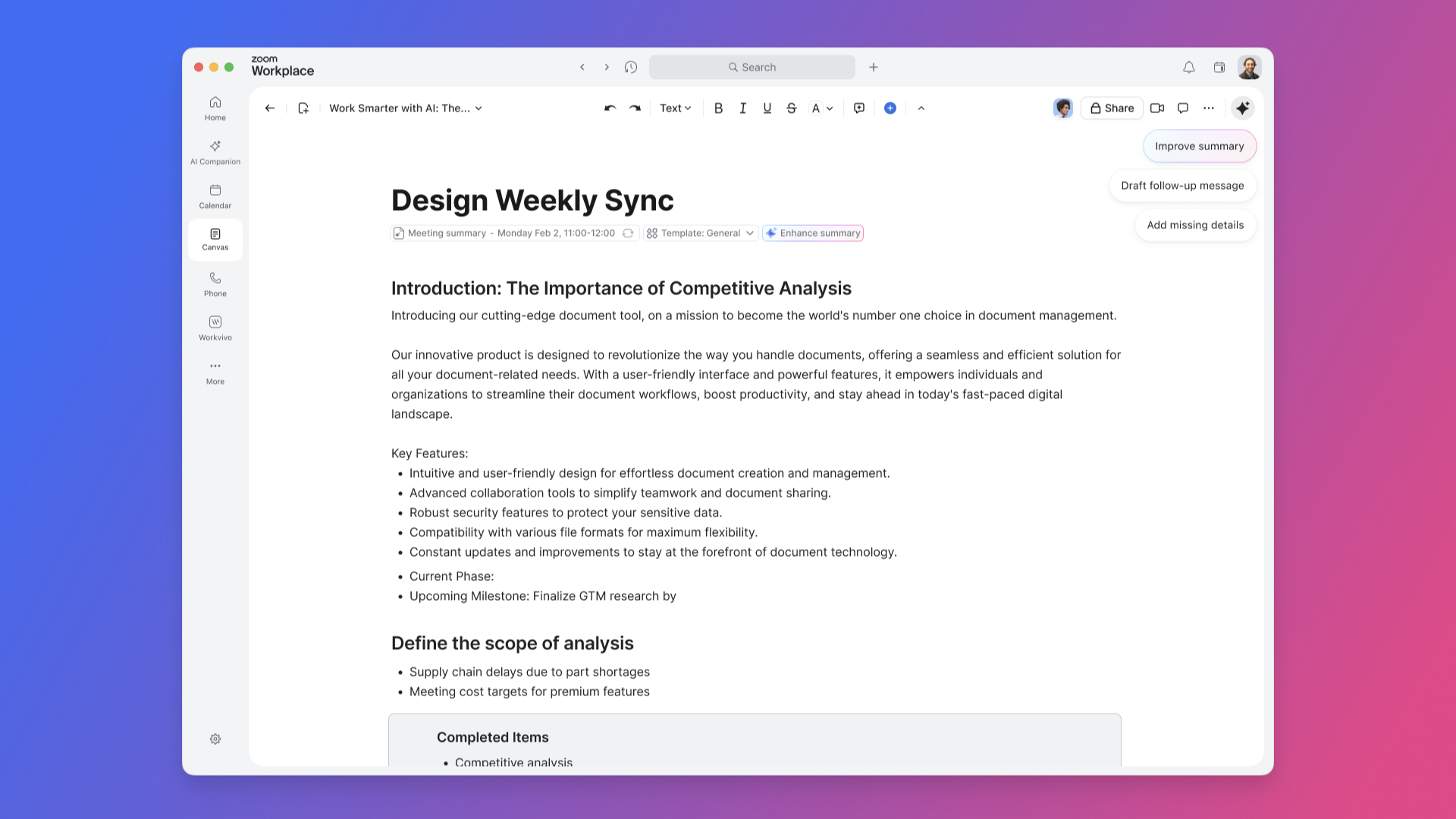
Zoom Canvas is an AI-first workspace for creating and collaborating on docs, wikis, tables, and forms — all within Zoom Workplace. It's built to help teams move from discussion to documentation to action without missing a beat.
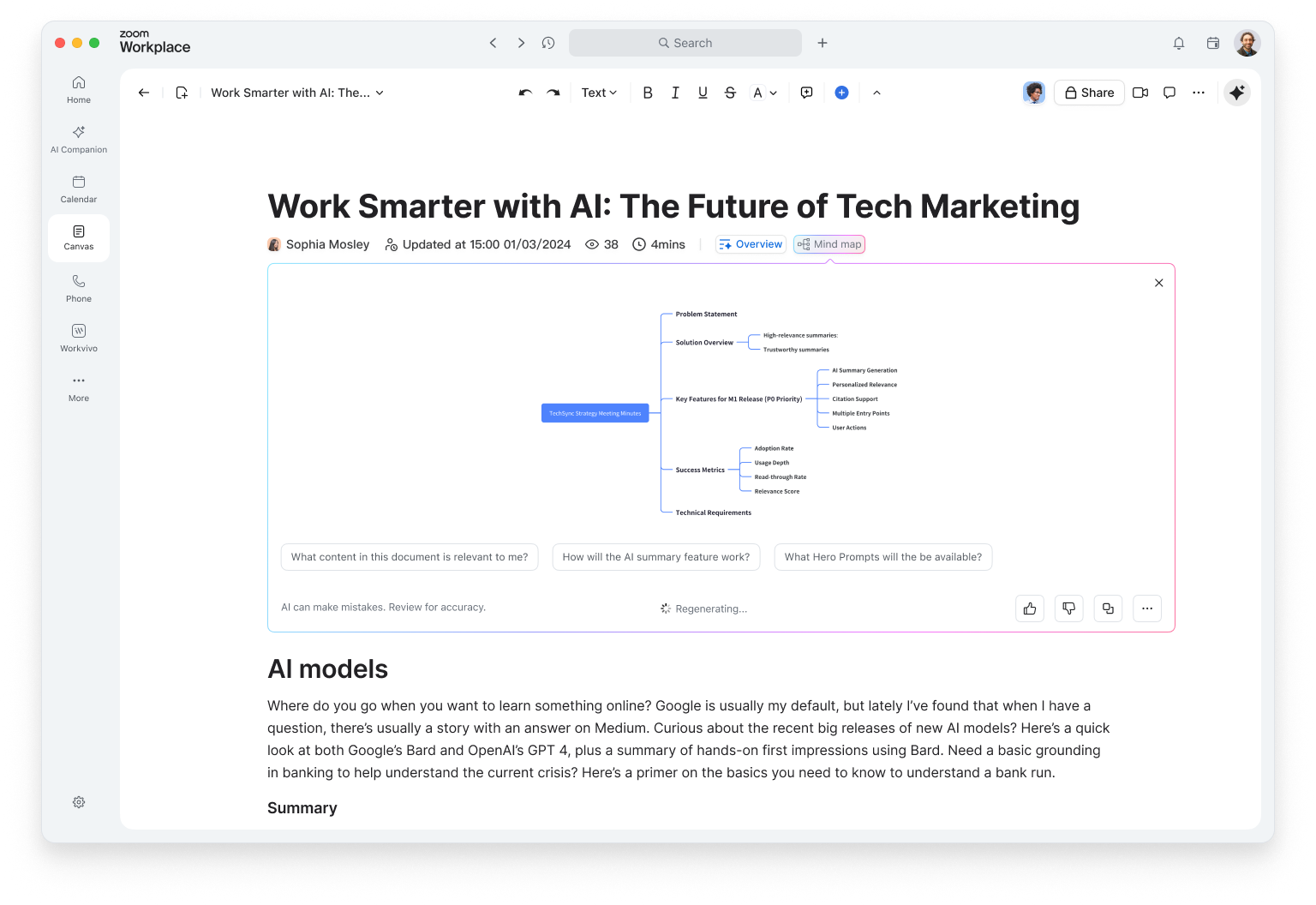
Canvas includes built-in AI features that help you generate, summarize, and refine content. Whether you're drafting a brief, capturing meeting notes, or building a project tracker, intelligent features help you start with context, not a blank page.
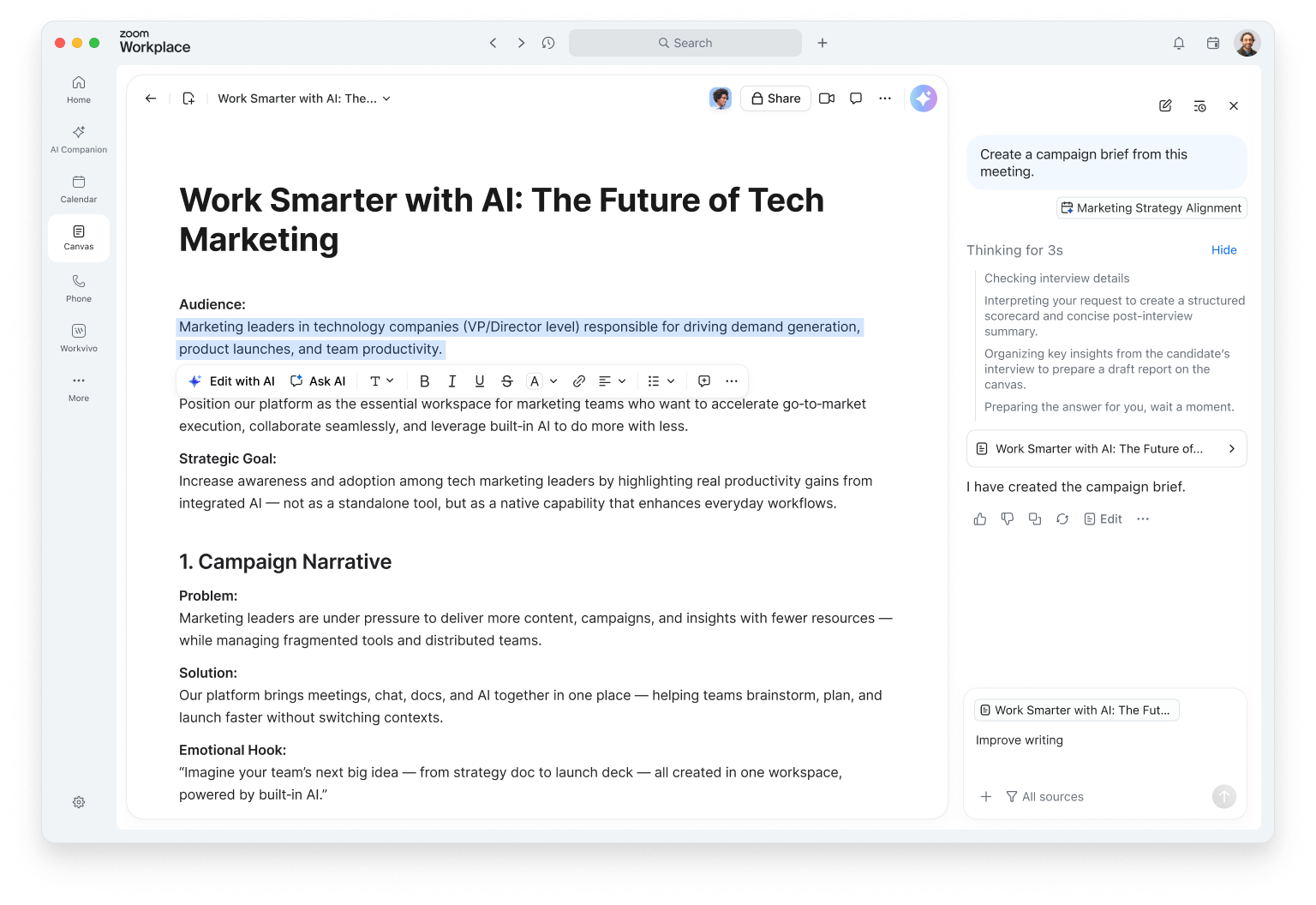
Write, brainstorm, and plan in one place. Use Writing Mode to focus on your ideas while Zoom Canvas helps you structure your thoughts, improve clarity, and even suggest next steps. You can pull in meeting summaries or transcripts directly from Zoom Meetings to generate a project brief or recap automatically.
Tag teammates to assign tasks, leave comments, or co-edit in real time — even during a meeting. With AI-first task management, you can turn action items into trackable tasks that update automatically as work progresses.
Keep your organization's knowledge in one searchable, structured place. Create a company wiki with nested pages, clear navigation, and granular sharing controls. Zoom Canvas can help summarize long sections, generate quick-reference guides, or suggest related pages to link.
Whether it’s onboarding materials, process documentation, or product FAQs, your wiki stays up to date and accessible to everyone who needs it.
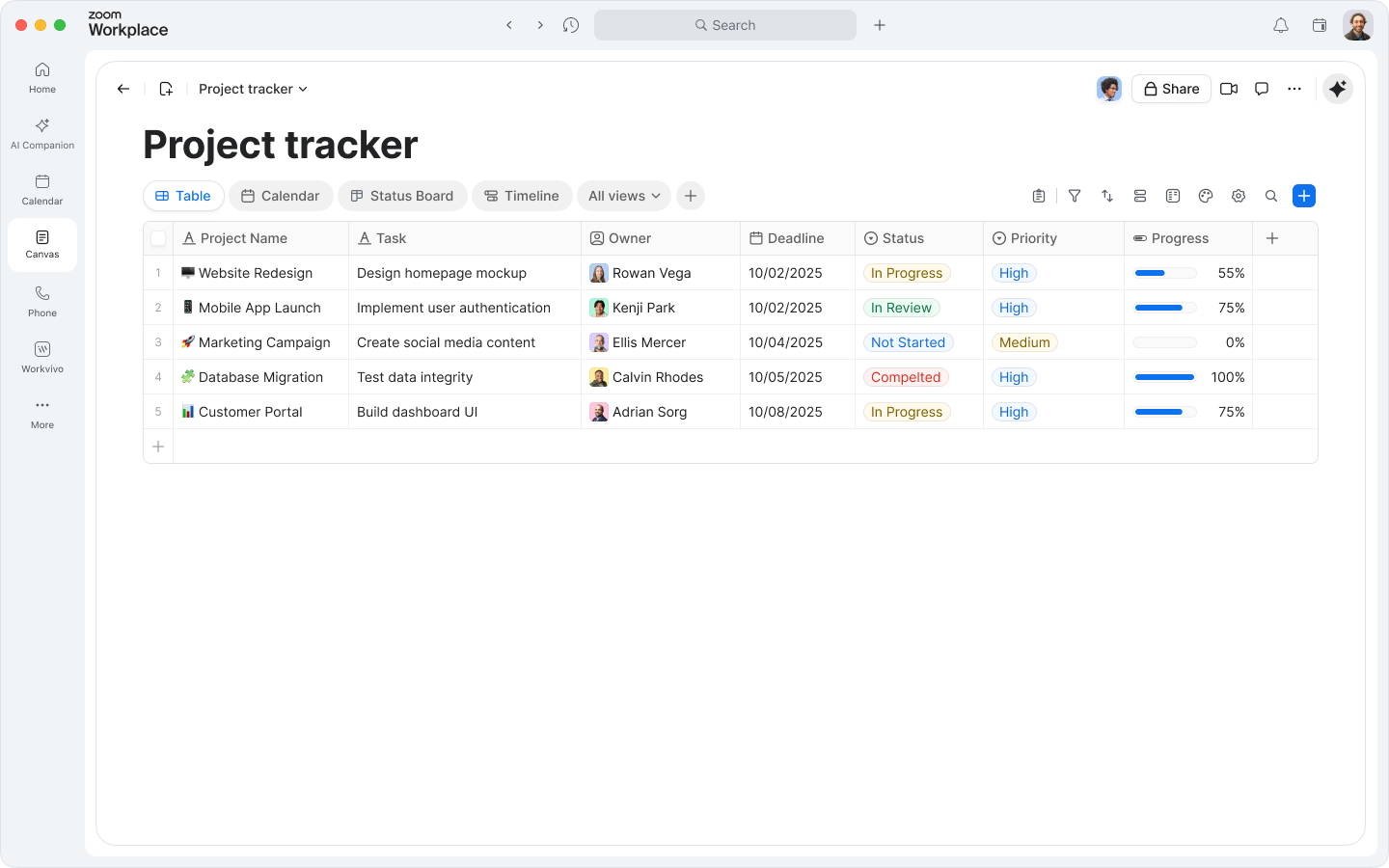
Zoom Canvas goes beyond text. Use data tables to track goals, projects, or customer feedback — and switch between table, board, or calendar views to visualize progress.
Need to collect information? Create forms directly in your doc to gather inputs from teammates or customers. Responses automatically populate your tables, so you can analyze and act on data without switching tools.
Your personal My Notes are now part of the experience. Capture quick thoughts or meeting highlights, then convert them into full docs with a single click. Zoom Canvas can expand your notes into structured outlines or polished drafts, helping you move from idea to execution faster.
Creating your first doc is simple — and smarter than ever.
In the Zoom Workplace desktop or mobile app, go to the Canvas tab. You'll see all the docs you've created or collaborated on, plus options to start something new. All your docs live in Zoom Hub, alongside your meeting summaries, recordings, whiteboards, and clips.
Here are a few ways to get started:
Choose “Blank document” from the Canvas home page to start from scratch. Then, use Writing Mode or ask Zoom Canvas to help you brainstorm, outline, or draft your content. You can even prompt it with context like “create a project plan based on our last meeting.”
In the "My meetings" view, select a past meeting to automatically generate a doc. You can use your meeting summary or transcript to create a recap, project brief, or next-step tracker. Your meeting summary or transcript can be used to create a recap, project brief, or next-step tracker.
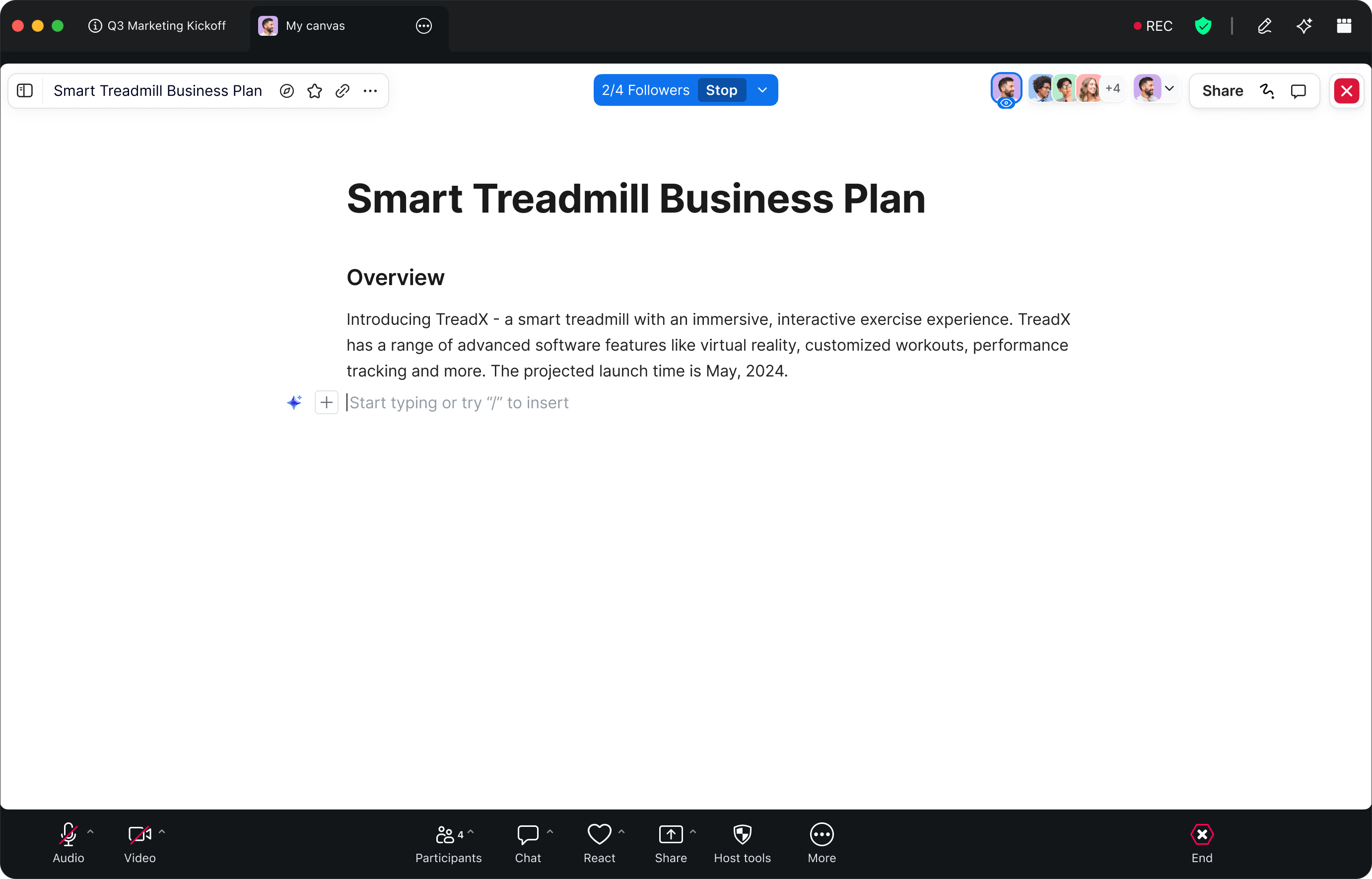
Need to capture ideas in real time? Click the Canvas icon in your meeting toolbar to open or create a doc right inside your meeting. Collaborate live with participants, co-edit content, and let Meeting Summary capture key points as you go. After the meeting, your doc is saved automatically in your Docs tab.
Zoom Canvas includes a growing library of templates to help you move faster. Choose from:
Each template is fully customizable — add tables, forms, or automation to fit your workflow.
Already have content elsewhere? Import text or spreadsheet files (.docx, .txt, .md, .xlsx, .csv) to transform them into collaborative Zoom Canvas docs. After it's imported, you can enhance them with AI Companion, add interactive components, and share them instantly with your team.
After your doc is started, make it your own. Zoom Canvas is designed to be flexible, visual, and collaborative.
Click the plus sign (+) or type a forward slash ( / ) to insert new blocks — headings, lists, images, videos, whiteboards, or embedded media. You can even embed a Zoom Whiteboard directly into your doc to keep brainstorming and execution in one place.
Switch between data views like table, board, calendar, and more to see your information from different angles. You can use AI features in Zoom Canvas to help categorize entries, summarize data, or highlight trends automatically.
Add a form block to collect responses from teammates or customers. Whether it’s a feedback survey, event registration, or internal request form, submissions feed directly into your tables for easy tracking.
Use Workflows to link your docs with other Zoom Workplace tools. For example:
These automations keep your work moving — no manual copy-paste required.
When your doc is ready, share it with collaborators or publish it as a webpage with a unique link. Control who can view, comment, or edit. You can even embed published docs in your intranet or share them externally for broader visibility.
Above all, experiment. Move blocks around, try new layouts, and let Zoom Canvas help you refine your content. Zoom Canvas adapts to how you work — not the other way around.
Zoom Canvas is included with eligible Zoom Workplace paid accounts as part of the Zoom AI Productivity Suite. For full access to all AI features in Zoom Canvas, get ZoomMate — the best way to use AI in Zoom Workplace.
ZoomMate brings together the entire Zoom AI Productivity Suite alongside everything else you need to turn conversations into finished work. Both ZoomMate and the Zoom AI Productivity Suite are now available for purchase and include AI Credits for metered AI actions.
Certain AI features are available with eligible paid Zoom Workplace plans. Availability may vary by region or industry vertical. AI features for Zoom Canvas are not included in Zoom Basic plans. Please note that availability may vary by customer type, region, and industry vertical at launch, with broader rollout expected throughout the year.